Laman

Showing posts with label Unity. Show all posts

Unity GUI Combobox or Dropdown

I'm using C# Script. Create C# Script named Dropdown. This method is when the button clicked, another button show.


using UnityEngine;
using System.Collections;

public class Dropdown : MonoBehaviour {
 
 public string[] items;
 public Rect Box;
 public string slectedItem = "";
 bool editing = false;
 
 void OnGUI(){
  if (GUI.Button(Box, slectedItem)){
   editing = true;
  }
  
  if (editing){
   for (int x = 0; x < items.Length; x++){
    if (GUI.Button(new Rect(Box.x, (Box.height * x) + Box.y + Box.height, Box.width, Box.height), items[x])){
     slectedItem = items[x];
     editing = false;
    }
   }
  }
  
 }
}

Attach the script in game object main camera then setting value.
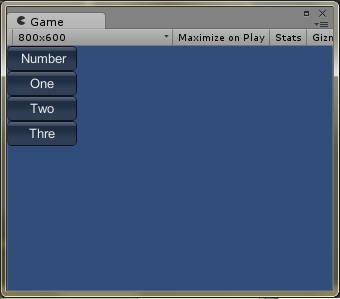
 Play and see the Result. When click the Number button show other button.
The source of this tutorial https://www.youtube.com/watch?v=WfvjA8mullw

Unity With SQLite Database

Unity scripting was backed by Mono actually. It was this page. SQLite – Mono. It’s not an exact implementation though but was easier that I thought.
  1.  Download a Precompiled DLL of SQLite http://www.sqlite.org/download.html
  2. Move the sqlite3.dll and sqlite3.def to Assets/Plugins in your unity project
  3. Download SQLite Browser http://sourceforge.net/projects/sqlitebrowser/ or using SQLite Manager addons of Mozilla Firefox.
  4. Create a database in your Assets/ folder in your unity project with SQLite broswer
  5. Copy System.Data.dll and Mono.Data.Sqlite.dll from C:\Program Files (x86)\Unity\Editor\Data\Mono\lib\mono\2.0\ and paste them in your Assets/ folder in your unity project.
  6. Access the database as above, only where “/GameMaster” is put “/YourDbName”. Note if you did this correctly MonoDevelop should have all of the methods when you type reader.
  7. When building you must copy your database file to the folder that automatically is created called yourProject_Data wherever you saved the executable.
 I create database using SQLite Manager addons of Mozilla Firefox.


Script:
using UnityEngine;
using System.Collections;
using Mono.Data.Sqlite;
using System.Data;
using System;

public class SqliteDb : MonoBehaviour {

 // Use this for initialization
 void Start () {
  string connectionString = "URI=file:" +Application.dataPath + "/sampledb.sqlite"; //Path to database.
  IDbConnection dbcon;
  dbcon = (IDbConnection) new SqliteConnection(connectionString);
  
  dbcon.Open(); //Open connection to the database.
  
  IDbCommand dbcmd = dbcon.CreateCommand();
  string sql = "SELECT col1, col2 FROM `sampletable`";
  dbcmd.CommandText = sql;
  IDataReader reader = dbcmd.ExecuteReader();
  
  while(reader.Read()) {
   int Col1 = reader.GetInt16 (0);
   string Col2 = reader.GetString (1);
   Console.WriteLine(Col1 + " " + Col2);
   Debug.Log (Col1 + Col2);
  }
  
  // clean up
  reader.Close();
  reader = null;
  dbcmd.Dispose();
  dbcmd = null;
  dbcon.Close();
  dbcon = null;
 }
 
 // Update is called once per frame
 void Update () {

 }
}

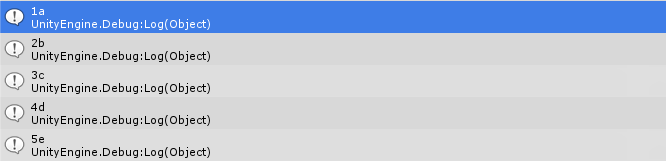
Unity console.


Important Copy sqlite3.dll into your into your project's Plugins folder (make a folder called Plugins if you don't have one).
  • You won't get a warning if you don't do this, and your project will run fine in the editor, however, it will fail to work when you actually build your project, and will only provide information about this in the log file.
  • This will give you a “License error. This plugin is only supported in Unity Pro!” if you're using Unity Indie, but it doesn't seem to have an effect on the actual play in the editor, nor does it seem to effect the ability to build stand-alone versions.
  • Alternately, you can leave it out of your project entirely, but when you build your application, you'll need to include a copy of sqlite3.dll in the same directory as the .exe in order for it to work.
Attachment Dropbox

Unity Automatic Resize OnGUI object

using UnityEngine;
using System.Collections;

public class GameGUI : MonoBehaviour{
public GUIStyle customGUI;

Rect ResizeGUI(Rect _rect){
 float FilScreenWidth = _rect.width / 480;
 float rectWidth = FilScreenWidth * Screen.width;
 float FilScreenHeight = _rect.height / 320;
 float rectHeight = FilScreenHeight * Screen.height;
 float rectX = (_rect.x / 480) * Screen.width;
 float rectY = (_rect.y / 320) * Screen.height;
 Debug.Log(_rect.x+" - "+_rect.y);
 //Automatic resize font size
 customGUI.fontSize=(int)rectHeight/4;
 
 //Return new position and height
 return new Rect(rectX,rectY,rectWidth,rectHeight);
}

void OnGUI(){
 GUI.Label(ResizeGUI(new Rect(190,60,100,100)), "Label position and size", customGUI);
}
}

Unity OnMouseDrag

Move Object with dragging mouse / drag object with mouse
Script:
float distance_to_screen;
Vector3 pos_move;
void OnMouseDrag(){
 distance_to_screen = Camera.main.WorldToScreenPoint(gameObject.transform.position).z;
 pos_move = Camera.main.ScreenToWorldPoint(new Vector3(Input.mousePosition.x, Input.mousePosition.y, distance_to_screen ));
 transform.position = new Vector3( pos_move.x, pos_move.y, pos_move.z );
}

Unity Phone Accelerometer

In the unity to use accelerometer using script Input.acceleration
 Example Code:
using UnityEngine;
using System.Collections;

public class AccelerometerInput : MonoBehaviour {

 float accX=0,maxSpeed=8;

 void FixedUpdate(){
  float move = Input.acceleration.x;
  rigidbody2D.velocity = new Vector2 (move * maxSpeed, rigidbody2D.velocity.y);
  //transform.Translate(new Vector2(move * maxSpeed * Time.deltaTime,0));
 }
}

Unity Save and Load Data

In Unity, to save and load data using PlayerPrefs

Static Functions

DeleteAllRemoves all keys and values from the preferences. Use with caution.
DeleteKeyRemoves key and its corresponding value from the preferences.
GetFloatReturns the value corresponding to key in the preference file if it exists.
GetIntReturns the value corresponding to key in the preference file if it exists.
GetStringReturns the value corresponding to key in the preference file if it exists.
HasKeyReturns true if key exists in the preferences.
SaveWrites all modified preferences to disk.
SetFloatSets the value of the preference identified by key.
SetIntSets the value of the preference identified by key.
SetStringSets the value of the preference identified by key.

Example Code:
using UnityEngine;
using System.Collections;

public class Teaser : MonoBehaviour {
 int rnd=0,data=0;
 
 // Use this for initialization
 void Start () {
  rnd= Random.Range(2, 6);
  data= PlayerPrefs.GetInt("Data");
  Debug.Log("Data Loaded "+data);
  Debug.Log("Random Number "+rnd.ToString());
  PlayerPrefs.SetInt("Data", rnd);
  Debug.Log("Data Saved "+rnd.ToString());
 }

}

Learn Unity Scripting C# PDF

This PDF is summary from Unity Scripting Learn page
Download from Dropbox

Unity Android OnGUI Controller

using UnityEngine;
using System.Collections;

public class Player : MonoBehaviour {
    float maxSpeed = 10f;
    Animator anim;
    bool faceright = true;
    bool grounded = false;
    float groundRadius = 0.2f;
    public Transform groundCheck;
    public LayerMask whatIsGround;
    float jumpForce = 600f;
    float move = 0;
   
    //gui button
    public GUIStyle customButton;
    public Texture btnTexture1,btnTexture2,btnTexture3;
    private Rect posBtnJump =new Rect(Screen.width - 80,Screen.height -80, 70, 70);
    private Rect posBtnLeft =new Rect(10,Screen.height - 80, 70, 70);
    private Rect posBtnRight =new Rect(90,Screen.height - 80, 70, 70);
   
    // Use this for initialization
    void Start () {
        anim = GetComponent();
    }
   
    void FixedUpdate(){
        grounded = Physics2D.OverlapCircle(groundCheck.position, groundRadius, whatIsGround);
        anim.SetBool("Ground",grounded);
        //if(!grounded)return;

        //using arrow on keyboard
        //move = Input.GetAxis("Horizontal");

        transform.Translate(new Vector2(move * maxSpeed * Time.deltaTime,0));
        //rigidbody2D.velocity = new Vector2(move * maxSpeed,rigidbody2D.velocity.y);
        anim.SetFloat("Speed", Mathf.Abs(move));
        //flip
        if(move > 0 && !faceright){flip();}else if(move < 0 && faceright){flip();}
       
    }

    //Flipping player
    void flip(){
        faceright = !faceright;
        Vector3 theScale = transform.localScale;
        theScale.x *= -1;
        transform.localScale = theScale;
    }
   
    // Update is called once per frame
    void Update () {
        /* Jump using Space
         * if (Input.GetKeyDown(KeyCode.Space) && grounded){
            anim.SetBool("Ground",false);
            rigidbody2D.AddForce(new Vector2(0, jumpForce));
            grounded = false;
        }*/
        for (int i = 0; i < Input.touchCount; ++i){
            Touch touch = Input.GetTouch(i);
            // Get touch point and invert Y-axis.
            Vector2 touchPoint = touch.position;
            touchPoint.y = Screen.height - touchPoint.y;
            if (touch.phase == TouchPhase.Began){
                if (posBtnJump.Contains(touchPoint) && grounded){
                    anim.SetBool("Ground",false);
                    rigidbody2D.AddForce(new Vector2(0, jumpForce));
                    grounded = false;
                }
            }
            if (touch.phase == TouchPhase.Stationary){
                if (posBtnLeft.Contains(touchPoint)){
                    move= -1f;
                }else if (posBtnRight.Contains(touchPoint)){
                    move= 1f;
                }
            }else{
                move = 0;
            }
        }

        //Exit application
        if (Input.GetKeyUp(KeyCode.Escape)){
            Application.Quit();
            return;
        }
    }
   
    void OnGUI() {
        if (!btnTexture1 || !btnTexture2 || !btnTexture3) {
            Debug.LogError("Please assign a texture on the inspector");
            return;
        }
       
        //left
        GUI.RepeatButton(posBtnLeft, btnTexture1, customButton);
        //right
        GUI.RepeatButton(posBtnRight, btnTexture2, customButton);
        //jump
        GUI.Button(posBtnJump, btnTexture3, customButton);
       
    }
}